
Collecting user feedback
User feedback is currently in beta. We'd love to hear your feedback as we develop this feature:
To collect user feedback for LLM traces, PostHog provides a native integration with Surveys. The Surveys integration enables you to collect user feedback and thumbs up/down responses attached directly to a given trace.
How it works
- Start by creating a survey for a group of LLM traces.
- In your app, collect survey responses with an
$ai_trace_idproperty attached to the events. - View user feedback per-trace within AI Observability, or view all feedback within Surveys.
For the common thumbs up/down use-case, we provide a React hook useThumbSurvey to quickly attach a thumb survey and optional followup questions to your existing UI. In other cases, you can manually send survey-related events to attach them to your trace.
Creating a survey
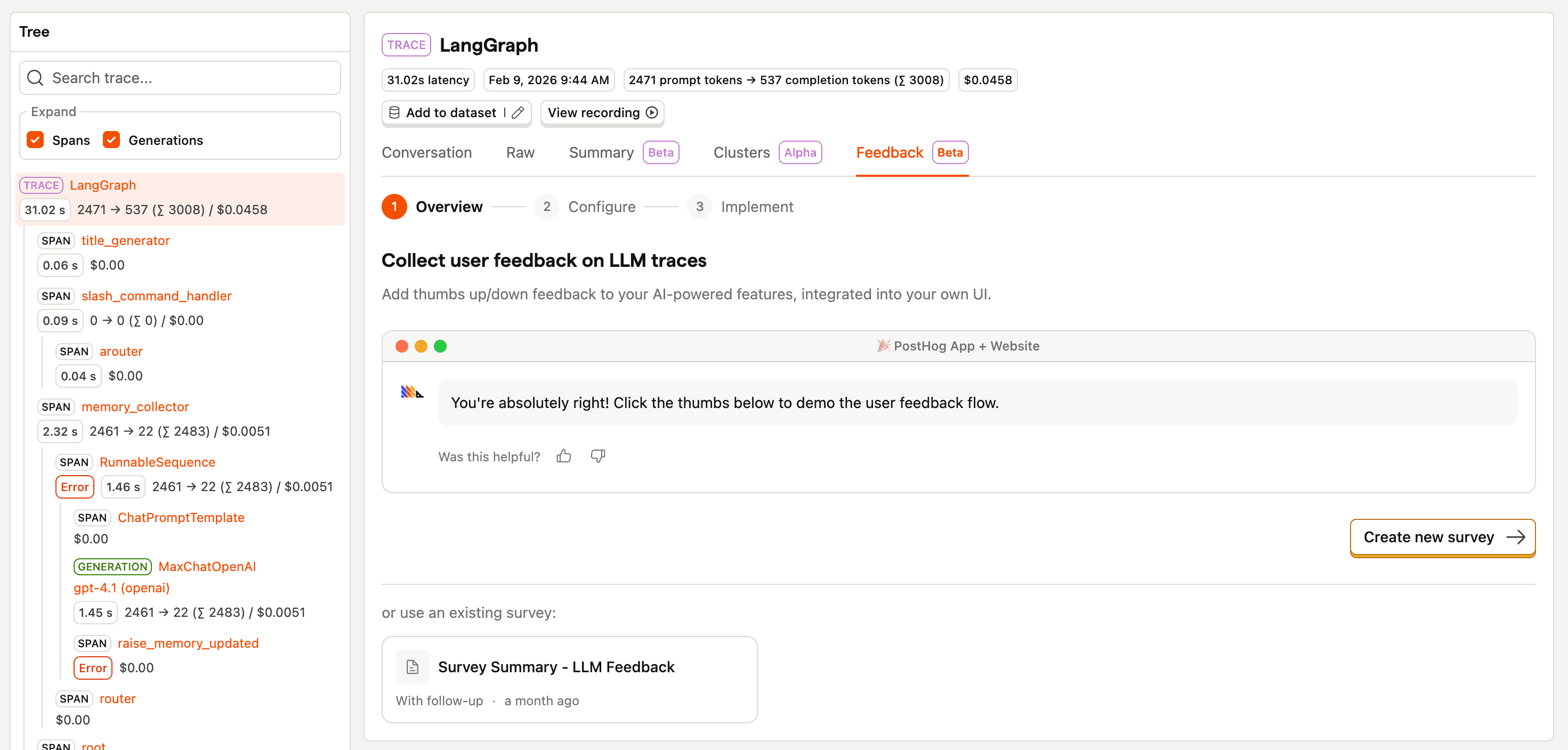
On any top-level trace (or pseudo-trace) event, navigate to the Feedback tab to create a survey.
The survey will begin with a thumbs up/down question. Toggle on Ask follow-up on thumbs down to ask a follow-up question when the user responds with "thumbs down".
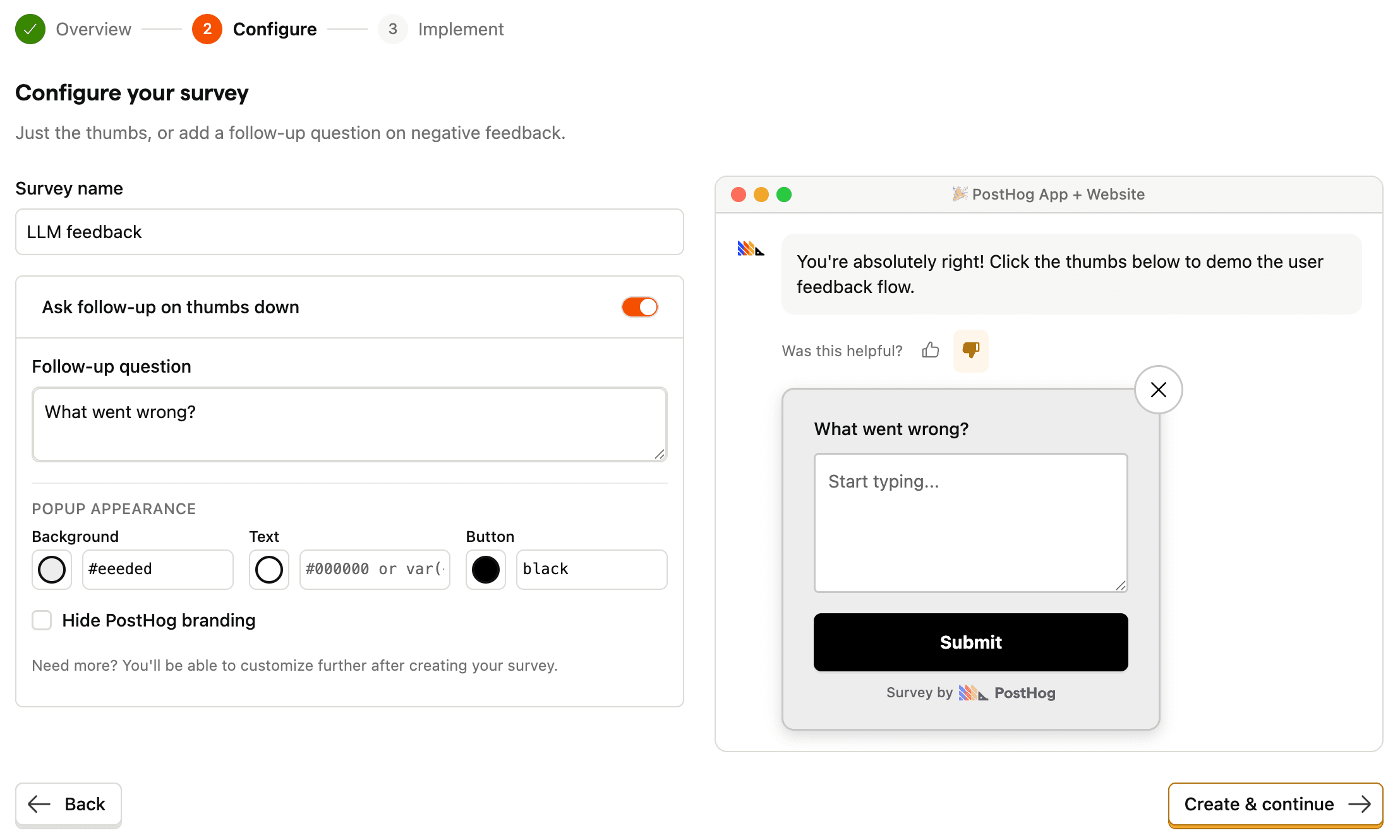
For more customization you can edit this survey post-creation, or create a new survey. However, complex surveys may not work with our useThumbSurvey hook and require manual event capture.
Click Create & continue to create your survey and view implementation instructions.
Integrating with your app
In React apps, use the useThumbSurvey hook. For any other app, or for more control, capture the feedback events yourself.
React: use the useThumbSurvey hook
To quickly integrate with your React app, we provide a hook useThumbSurvey that exposes a method to submit survey responses, the user's response, and a ref to position followup question pop-ups.
Quickstart
Note: This hook requires
@posthog/react1.7.1+, which is bundled withposthog-js1.345.1+
Initialize the hook with the following options:
It returns the following interface:
A simple usage of this hook, including a followup question pop-up, looks like this:
Impression tracking
By default, the hook emits a survey shown (impression) event on mount.
Duplicate impression events will not impact your ability to see responses within AI Observability, but may skew metrics viewed directly from Surveys.
To disable this behavior, initialize the hook with disableAutoShownTracking: true and manually call trackShown() when you consider your survey to be "shown."
Response persistence
The hook's response value is not persisted across mounts. We plan to improve this soon, but in the meantime, you'll need to set up your own persistent response tracking if needed.
Question indices
The hook submits survey responses using the legacy index-based tracking for survey questions. If you add or re-order survey questions from the Surveys UI, you may experience unexpected behavior. See Implementing custom surveys for more information.
Survey compatibility
To use this hook, your survey must begin with a thumbs up/down question. All other surveys features are supported, such as followup questions and question branching.
For more information, see the hook source here on GitHub, or a real implementation in the PostHog codebase here.
Capture feedback events manually
If you are not building a React app or otherwise need more control (such as a completely custom followup UI), you can capture user feedback events manually.
In summary, you'll emit these events with $ai_trace_id properties:
- Emit a
survey shownevent when a user sees your survey - Emit a
survey sentevent as a user answers questions, making sure the final event carries every answer collected so far
Step 1: Track impressions
While not required, we recommend emitting survey shown events when a user sees your survey. This enables two things:
- Accuracy when viewing all metrics in Surveys
- Heads-up messages within LLM traces that indicate a user saw a survey, but did not respond
survey shown events must have the following properties:
| Property | Description |
|---|---|
$survey_id | Your survey ID |
$ai_trace_id | Your generated trace ID |
Note: we do not yet support an easy way to check whether a user has responded to a given survey/trace combination. Because of this, without your own persistent tracking, you may end up with duplicate
survey shownevents.Duplicate events will not impact your ability to view responses per trace, but will skew impression & response rate metrics on your Survey overview.
Step 2: Collect responses
For a multi-question survey, send one survey sent event per question as answers come in, and give every event the same $survey_submission_id. Mark the last event with $survey_completed: true.
Important: PostHog displays the completed event as the response for a submission, so that final event must include every answer collected so far, not just the current question's. If an earlier question's
$survey_response_{questionId}property is missing from the completed event, that answer won't show up in the response or the question breakdown. The example below shows the pattern.
survey sent events may have the following properties (* = required):
| Property | Description |
|---|---|
$survey_id * | Your survey ID |
$survey_response_{questionId} * | A question's response value, where {questionId} is that question's ID. Include one property per answered question. On the completed event, include every response collected in the submission. |
$ai_trace_id * | ID for the trace corresponding to this survey |
$survey_submission_id | A unique ID you generate to link a submission's events together. Reuse the same value across every event in the submission. |
$survey_completed | Boolean for whether this is the final event in the submission. The completed event is the one PostHog displays, so it must carry every answer. |
To get survey question IDs, you have two options:
- Go to Surveys, find your survey, and check the Overview tab. This will show the full survey object, including each question's ID.
- Call the PostHog SDK's
getSurveysmethod to retrieve your survey, then extract the question IDs from the response.
To learn more about the properties available for survey events, or how to use the getSurveys method, see Implementing custom surveys.
Example
An example sequence for a thumbs up/down survey with a followup may look like this:
Viewing survey responses
You can view survey responses per-trace within AI Observability, or per-survey within Surveys.
View all feedback in Surveys
Navigate to Surveys and open your LLM feedback survey. You'll see aggregated survey metrics at the top, such as overall thumbs up/down ratings:

You can also view all responses in a table, and quickly link to the related trace by clicking the AI Observability icon:

View all traces with feedback
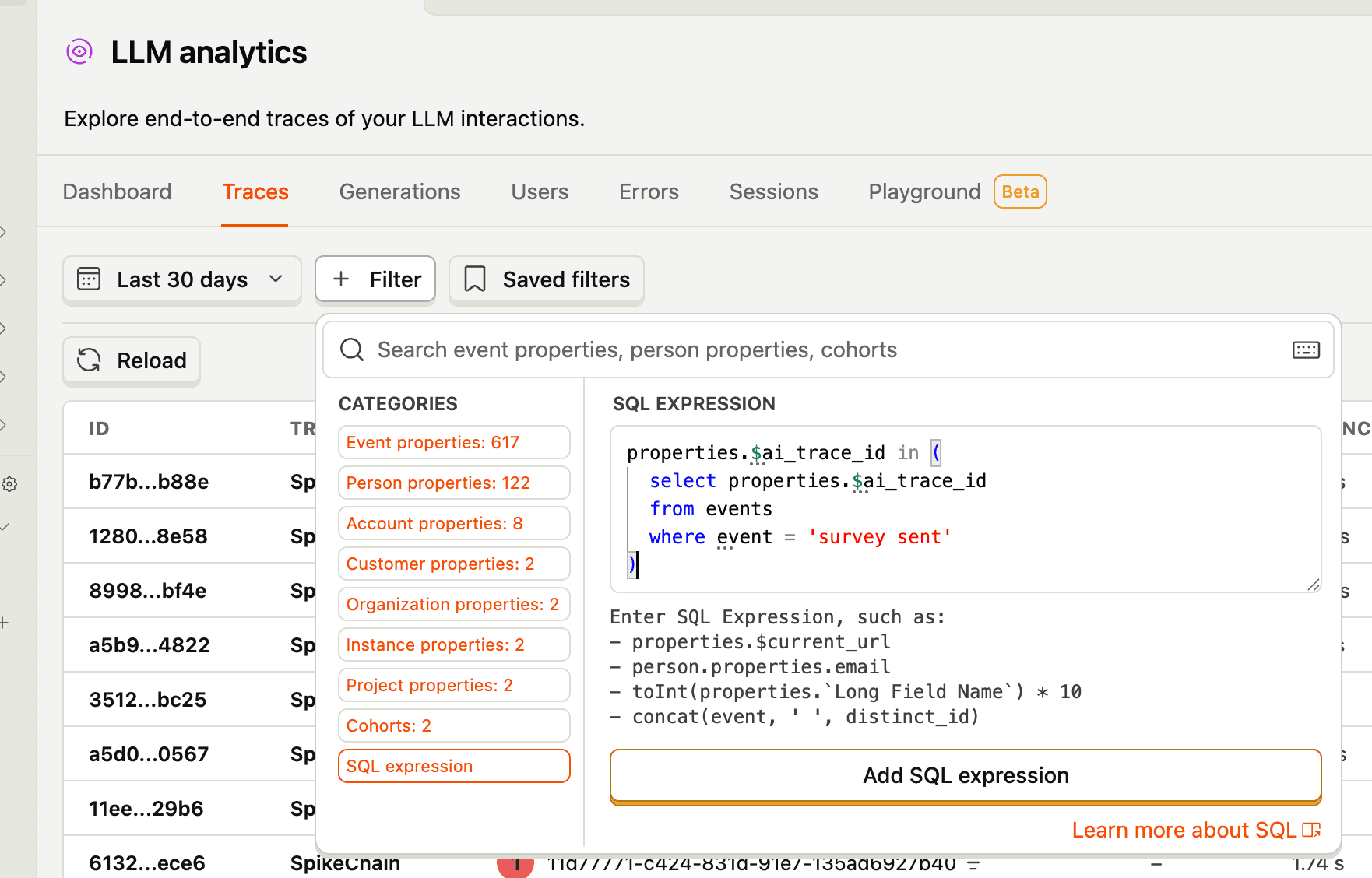
Use this SQL expression to filter your LLM traces down to only those with attached survey responses:
View individual trace feedback
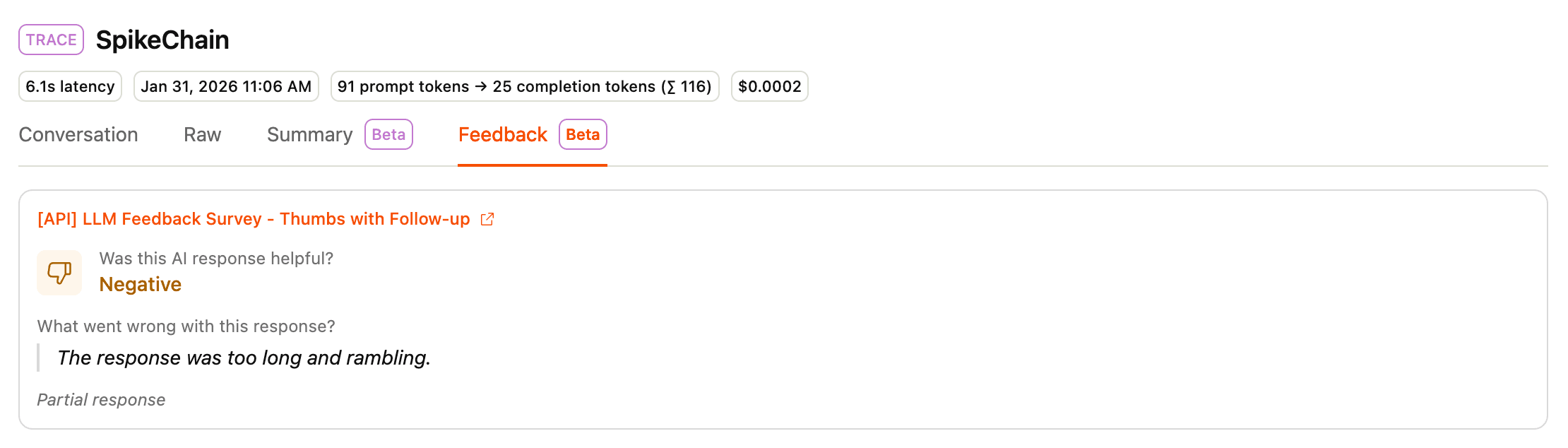
For an individual trace, navigate to the Feedback tab to see survey responses.
If there are no survey sent or survey shown events associated with the given trace, you'll see the option to create a new survey, or select an existing one to see implementation instructions.
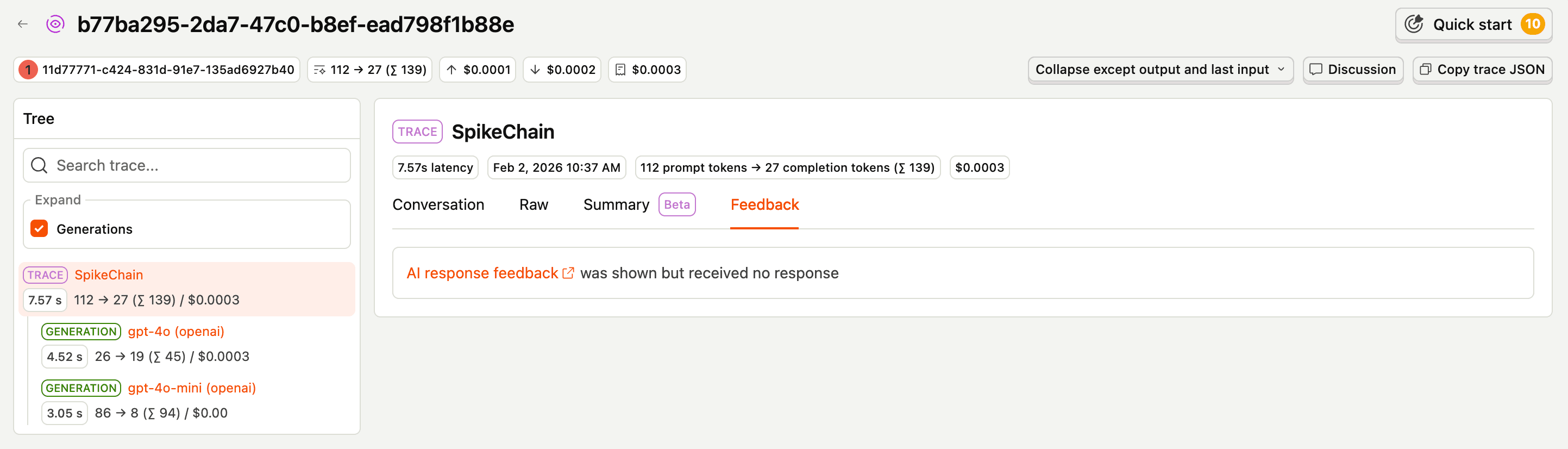
Otherwise you'll see the survey response, or a message indicating a survey was shown but no response was sent.
Best practices
Organizing feedback
We recommend creating one survey per logical "group" of traces.
For example, consider a product that offers users two AI generations:
- Chatbot to help query the docs
- Agent to help build custom dashboards
In this case, we'd recommend creating two separate surveys: one for the docs chatbot, and another for the dashboard agent.
This would enable you to quickly view aggregate feedback for all docs chat traces or custom dashboard generation traces via the Surveys UI.
If you use a single survey for all traces, it will be difficult to parse them per "group" or "user action" without adding custom event properties and building your own dashboards.